
How Do I Eat This?
Preparation, storage and reheating instructions for every food in your plan; what you can cook with whatever is in your kitchen right now; and the whole week turned into a single shopping list. The plan is never modified here — only how to carry it out.
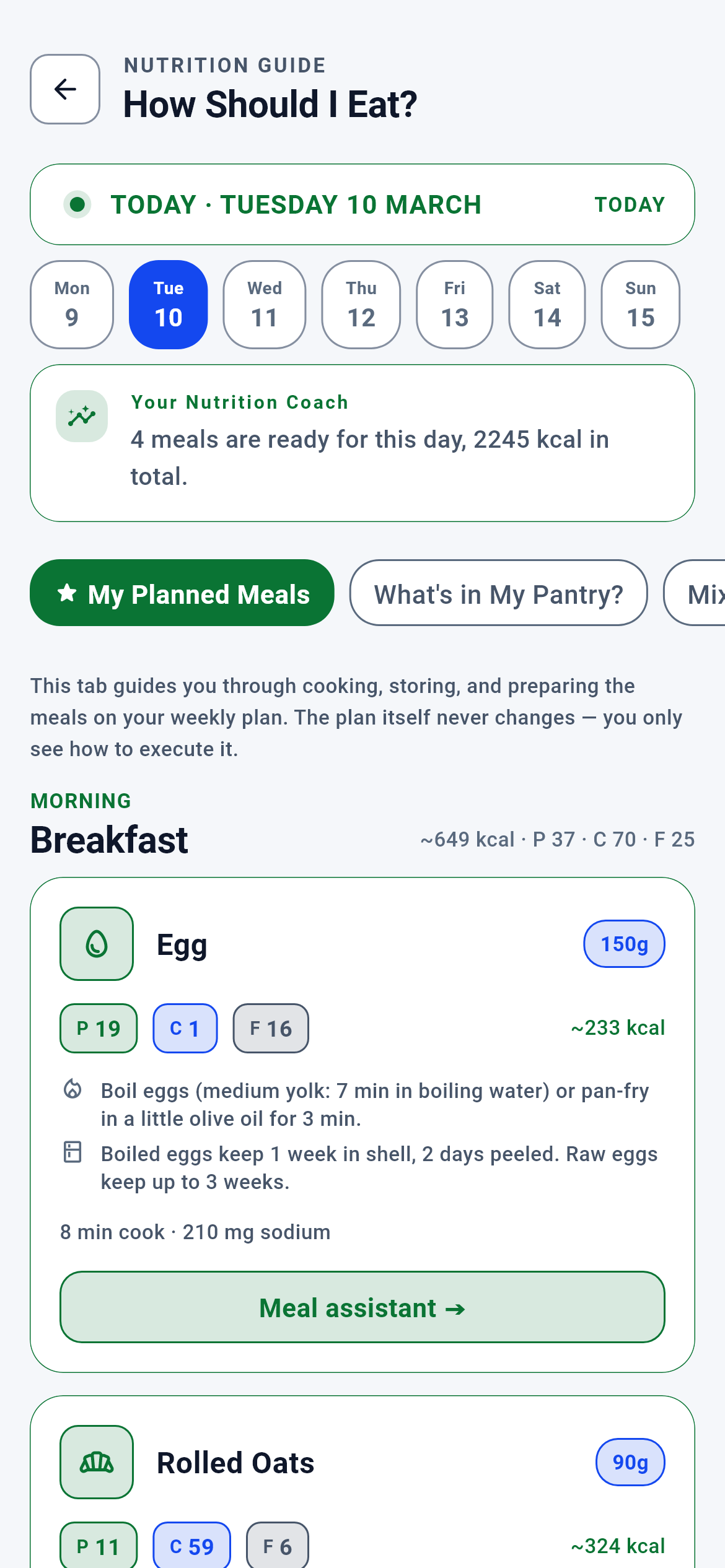
How Do I Eat This? · 1/8
The module’s single screen as it opens. You come here once your nutrition plan is ready. The screen has six tabs, but they are not six separate sections: this is the first — the meals in your plan — and the remaining five are the tools around it (cooking with what you have, snack templates, storage notes, the week’s food list and the general guide).
You read the selected day’s meals top to bottom, seeing each food’s preparation and storage instructions on its card.
- Back — the screen you came from; the home screen if you opened this directly
- The day selector — moves to another day of the week without leaving the page
- The tab chips — switch to the other five states of the same screen
- The meal assistant — opens a preparation page for that item; the plan and grammages do not change
- Pull to refresh — requests the week from the server again
What is on this screen 5
Say you open the screen on a Wednesday morning. A green-framed strip sits at the top: a pulsing dot, the text "TODAY · WEDNESDAY 5 AUGUST" and a "TODAY" badge on the right. Just below it the seven days of the week sit as pills, with Wednesday in blue.
The screen tells you which day of the week it is showing and selects today by default.
Day selection is the screen’s own local state and never goes to the server. At start-up it first checks whether today exists in the plan; if it does, today is selected, otherwise the first day of the week. The reason is the week turning over: if a date from the previous week is left behind, it does not exist in the new week and the screen has no day to show. In that case the day selector stays OPEN but no day-dependent surface is drawn — a closed door is never left without an exit.
Tapping another day changes the meal cards, the storage notes and the coach sentence for that day. The page is not reloaded and no data is re-requested.
The system calls this the "selected day" — purely visual local state.
Just below the day selector there is a green-framed box: "Your nutrition coach — 4 meals are ready for this day, 2245 kcal in total."
The coach states the server’s decision for that day in a single sentence.
The order is fixed: warning first, information second. If the day’s plan exceeds the salt threshold the coach says that first; with no warning it prints a neutral summary. Printing a summary while a warning exists would bury the warning. The critical part: the device does not perform the threshold comparison. While building the plan the engine decides "this day’s sodium exceeds the threshold" and writes it as a flag onto the day object; the screen looks only at the flag’s TYPE and prints that type’s text. It does not interpret the number, does not know the threshold and does not form a new verdict.
If the server sent neither a warning nor a summary for that day, the box is NOT drawn at all. You never see an empty coach box or an "everything is fine" line, because both would say something the server did not say.
The system calls this a fail-closed surface: no evidence, no surface.
To the right of the "MORNING · Breakfast" heading it reads "~649 kcal · P 37 · C 70 · F 25"; the Egg card below carries a "150g" badge, "P 19 · C 1 · F 16" chips and "~233 kcal".
The total in the meal heading and the grammage and macros on the card all come from the plan itself; the screen adds nothing up.
So that one number never has two definitions. If the server computed one total while producing the plan and the screen computed another while drawing it, changing one would leave the other forgotten and nobody could say which was right. So the slot total is read from the field the server sent; if that field is absent the row is NOT drawn at all — "0 kcal" is never written, because zero is a claim, not missing data.
If you do not see a macro row on a card, no data arrived for that item; it does not mean you are getting zero.
The system calls this a server-authoritative view projection.
The Egg card holds two more lines: with a pot icon, "Boil the egg (medium: 7 minutes in boiling water)…", and with a box icon, "A boiled egg keeps 1 week in the fridge in its shell; 2 days peeled."
Every card shows the preparation and storage profile of the food family that food belongs to.
Instructions are not written per food but per FAMILY: chicken, red meat, fish, shellfish, egg, dairy, legume, grain, vegetable, fruit, nut, fat and supplement. Chicken breast and chicken thigh share the same cooking logic; writing separate text for each creates two copies of the same information, and copies drift apart eventually. If a food’s family is not recognised it falls back to the general profile — so there is an instruction in every case and no empty cards.
Even if you see the same food in different meals on different days, the instruction is the same; what you need to learn is the family, not the food.
The system calls this the "family preparation guide".
Below the coach box there is a horizontal chip strip: "My Plan’s Meals", "What Do I Have?", "Mix & Templates", "Storage", "This Week", "Guide". Six of them, all the same size.
The six chips are six states of one screen — not six separate pages.
The area below the strip is a tab view with six children; tapping a chip does not change the page but the body of the same page. The top part — the day strip, the day selector and the coach box — stays fixed. So whichever tab you are on, which day you are looking at is always on screen.
Read the order like this: first the plan itself, second making do with what you have, third snacks, fourth storage, fifth the week’s shopping summary, sixth general knowledge. The first chip is starred because it is the module’s main job.
In interface terms this is called a "tab view".
Behind the scenes — how the system decides 7
How the computed macro target reaches the kitchen
Say the nutrition module computed 2,266 kcal, 180 g protein, 238 g carbohydrate and 66 g fat a day for you. Opening this screen, what you meet is food by the gram with cooking instructions.
The screen never sees the target; it sees the target already turned into a plan. It makes one request and the whole week arrives ready-made.
Every step of the chain lives in one place: the target is computed in the nutrition engine, the plan is built from that target, the safety gate (allergens, diet type, sodium threshold) is applied on the server, and only the RESULT reaches the screen. The phone sends this request with an empty body — the server reads the plan view, the allergy declaration and the diet type from its own vault. The reason is simple: with the gate on the same machine as the screen it guards, a one-line change could silently remove a warning and you could see a food you are allergic to with no warning at all.
When something that affects your target changes in the nutrition module (weight, goal type, training frequency), the foods and grammages on this screen change too. You do not have to make that connection yourself.
The system calls this a server-authoritative view projection.
How the sample meal is chosen
Say Wednesday breakfast holds eggs, porridge and milk; lunch holds chicken breast, bulgur and a seasonal salad.
This screen does NOT make that choice. How many grams of which food each meal carries is decided when the plan is produced; the screen draws the cards that arrive.
This distinction defines what the screen is. Were the screen a recommendation engine, two different meals could be produced for the same plan in two different places. Instead the only thing the screen holds is the week: seven days, four meal slots per day, items in each slot. If no data arrived for a day, no day-dependent surface is drawn for it and the day selector stays open.
If you want to change a meal, you change it in the nutrition plan, not here. This screen’s job is not to choose but to help you carry out what was chosen.
The system calls this the "week meal plan" view.
What is drawn when the endpoint is down
Say the server could not be reached, or a food in your plan has dropped out of the catalogue.
The screen shows an error surface; it does NOT draw an empty week.
Drawing an empty week would present it as "you have no plan this week" and you would read a fact that is not true. An incomplete or invented plan is worse than no plan, because its wrongness is invisible. For the same reason no local plan copy is LEFT on the phone to fall back to: with two copies, nobody can say which is right.
When you see the error surface, pull to refresh and request it again. The week also reloads by itself when you bring the app back to the foreground — because the plan may have been revised in the meantime.
The system calls this a fail-closed gate.
Where the storage and reheating advice comes from
Say you cooked 800 grams of chicken on Sunday and are reheating the rest on Tuesday evening. The card reads "1.5–2 minutes at medium in the microwave; or 3–4 minutes in a non-stick pan, lid on, with a spoonful of water. Reheat once, not twice."
Every food belongs to a family and the instructions are written per family: the simple method, the athlete method, storage, 2–3 day batch preparation, reheating and a variety suggestion.
Writing the instructions per family rather than per food is about consistency, not maintenance cost: chicken breast and chicken thigh need the same internal temperature, and writing separate text for each creates two copies of the same knowledge. If the family is not recognised it falls back to the general profile, so no food is left without instructions. The texts are kept in both languages and whichever the screen is in is printed.
If you are batch preparing, read the 2–3 day section of the family profile: it tells you how many grams to cook, how many portions to split it into and what to do on which day.
The system calls this the family preparation guide.
Which data the weekly grocery list is born from
Say 200 grams of chicken breast is planned on each of the week’s seven days. The "This Week" tab reads "1400 g total · in 7 meals", while the shopping list reads "Chicken Breast Fillet 500 g · 3 packs · ₺477".
Both lists are born from the same source — the week’s plan — but answer two different questions: one is "how much is needed", the other "how many packs do I buy".
The gram total and the pack count are separate decisions. The pack rule finds the smallest whole number of packs that covers the need and computes the cost for each candidate product; the cheapest total becomes the recommendation. The reason this is NOT computed on the phone is price: with the price list on the phone, a price edit changes the recommendation and you cannot see it. The pack count and row total are carried inside the response so the "Change" page does not repeat the same calculation for every alternative.
When a food’s grammage changes in your plan, both lists change together. You do not add anything to the shopping list by hand; the only way in is to be in the plan.
The system calls this the "pack rule".
Where the AI coach’s boundary ends
Say in the "What Do I Have?" tab you entered chicken, potato and butter, selected "oven" as the technique and asked for instructions.
The answer that comes back describes only preparation, cooking, storage and batch technique.
The contract is fixed in four clauses: no health, dietary, allergy, salt or medical decision is MADE; the weekly plan is NOT modified; grammages are not changed; and the answer is written to no engine state — it is only displayed on screen. The last clause matters most: if the answer became a persistent decision, text produced by a language model could influence your plan.
The instructions you get from this tab do not disturb your plan. Try as much as you like; your plan is in the same place the next day.
The system calls this read-only advisory AI.
Who can enter this module
Say you arrived at this screen straight from a link but your account has no nutrition access.
The route sends you to the locked screen; this screen never opens.
The module passes two gates: first the session requirement, then nutrition-segment access. The shopping list sits inside the same segment. The gate exists on both the client and the server; the client gate prevents the screen from opening, the server gate withholds the data. With a single gate, anyone bypassing the client could obtain the data.
Without access, "How Do I Eat This?" and "My Weekly Shopping List" are closed; the nutrition plan itself sits behind a separate gate.
The system calls this the "route guard".
What your data is for 5
Your weekly nutrition plan
If you provide it Five of the six tabs fill up: the meal cards, the storage notes, the week’s food list and the shopping list all derive from this plan.
If you skip it The screen draws a "no plan view" surface. An empty week is not drawn, because it would read as "you are not eating anything this week". For the same reason the shopping list shows a prompt to create a plan rather than an empty list.
Your allergy declaration and diet type (in your profile)
If you provide it Every item in your plan passes the allergen, diet and sodium gate on the server; if there is a violation a warning appears on the card and a coach sentence at the top of the day.
If you skip it The gate is never triggered and no warning appears. That is not a fault but an absent declaration: the system cannot protect you from an allergy it does not know about. An allergen you did not declare can enter your plan.
The ingredients in your kitchen (the "What Do I Have?" list)
If you provide it The moment you choose a technique the instructions button enables; you can also pick a day and meal from your plan and get instructions tailored to it.
If you skip it The instructions button stays disabled. Asking for instructions with an empty list would make the answer empty too. The list is kept on the server; change devices and the same list is there.
Your protein target (computed from your weight and goal type)
If you provide it The day summary builds the sentence "You will reach 97% of your protein target", so you see in numbers what following the plan gives you.
If you skip it The percentage sentence is NOT built at all; the summary carries only the meal count and calories. "0%" is never written, because zero is a measurement and is not the same thing as "no target defined".
Your product preference ("Change" in the basket)
If you provide it The pack size you chose for that food becomes permanent; later weeks are calculated with that product too.
If you skip it The server recommends the product with the lowest total cost. That is not a shortcoming but the default — the list works completely without you stating a preference.