
Onboarding
You describe yourself once across six screens; the engines build your training and nutrition plan from those six answers rather than picking one off a shelf.
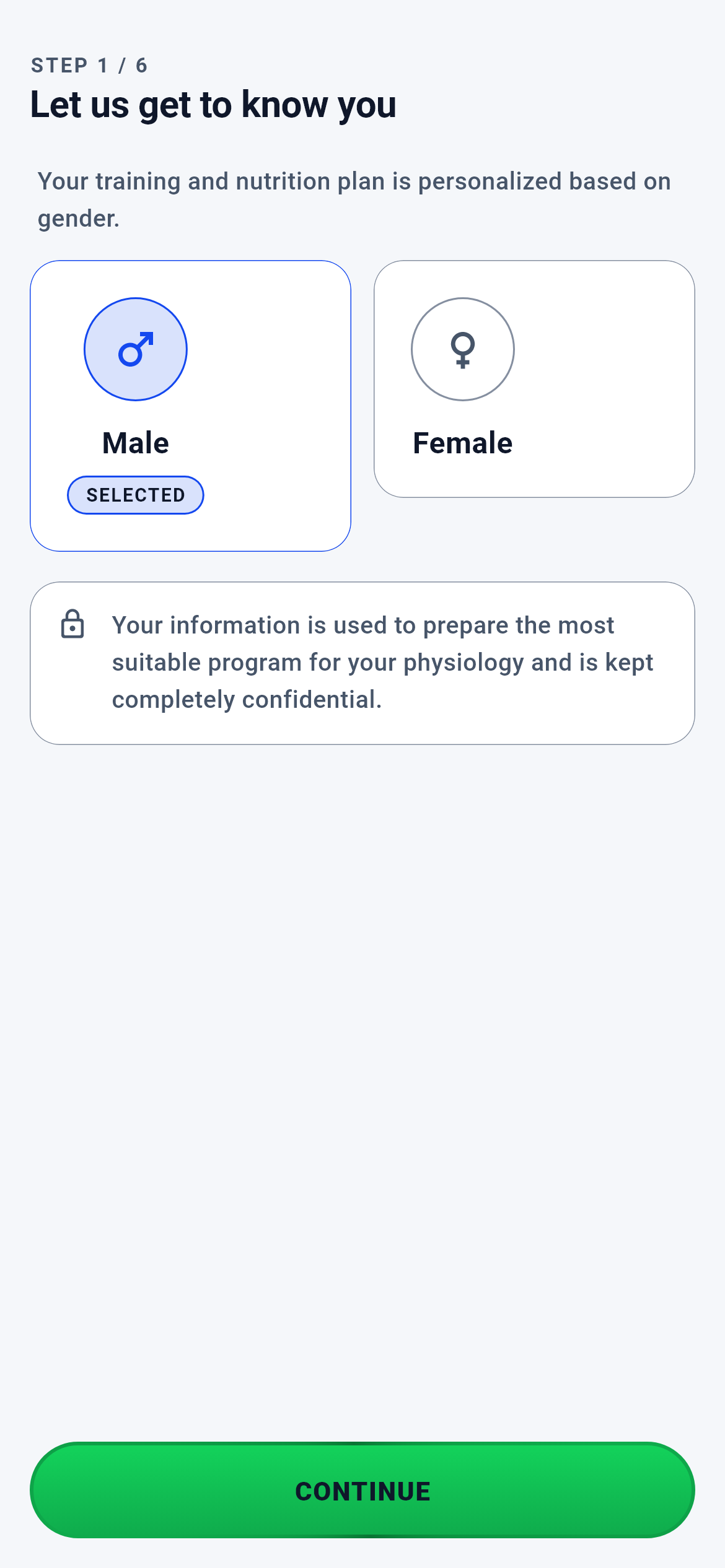
Let us get to know you · 1/9
The first screen of onboarding — the header reads "STEP 1 / 6". You land here automatically the first time you sign in; there is no previous step to return to, which is why there is no back arrow.
You tap one of two cards to pick your sex; the card turns to a blue border and a "SELECTED" badge appears beneath it.
- CONTINUE → Step 2 (Basic Details)
- CONTINUE does nothing without a selection — the button stays dimmed
What is on this screen 3
Say you tap the "Male" card but have not pressed CONTINUE yet, then change your mind and tap the "Female" card.
The selection changes instantly and nothing is saved; saving happens only when you press CONTINUE.
Until CONTINUE, the sex selection lives only in the screen’s own memory; it is written to the shared state the engines read only on CONTINUE. That way an accidental tap does not trigger a cascade of recalculations behind the scenes — because this single answer branches both the training and the nutrition side.
Try freely and undo freely. The only thing that persists is the selection at the moment you press CONTINUE.
The system calls this "local selection, commit on confirm".
Say you read the lock-icon box under the cards and wonder where this information goes.
Sex is the first field to enter the engine payload at submission time, where it is named "profile sex".
On the training side the level-card texts and goal options come from separate lists per sex; on the nutrition side the base of the daily energy calculation depends on it. So this single answer also changes the content of the next four screens.
That is why the screen carries a "kept private" note: the data is asked for to build the plan, not for marketing.
Say you heard this screen used to have a language picker and you are looking for it.
The language picker was removed from this screen; the app uses your device’s language.
Onboarding’s job is to get to know you, not to configure things. The same setting sitting in two places (here and in Settings) would drift apart over time and leave you unsure which one applied.
To change the language use Settings → Language; there is no need to look for it in onboarding.
Behind the scenes — how the system decides 6
Six answers become one payload
Say you confirmed the health declaration and pressed CREATE MY PLAN.
Every answer you gave across the screens is placed into a single payload, and that payload is sent to the engines.
The payload is built from accumulated state rather than from individual screens; it contains sex, age, height, weight, occupational activity, step band, training age, level, goal label, goal type, training location, segment and four health flags. The reason it is a single payload: the engines do not know about screens, only about this payload. So even if the screen order changes, the engine’s input does not.
That is why skipping a step is not "skipping a screen" but putting a missing field into the payload.
The system calls this the "onboarding payload".
The payload fills three profiles at once
Say the payload has been prepared and submission has begun.
The payload fills three separate profiles in sequence: the account profile, the nutrition profile and the training profile.
The three are kept apart because they change at different rates — you update your weight weekly, your goal monthly, your sex never. Held in one place, a small update would force the whole plan to be recomputed. The order is fixed too, and if one fails the rest are not run; a half-filled profile is more dangerous than an unfilled one, because it silently produces a wrong plan.
When you finish onboarding, your profile, your nutrition screen and your training plan are all ready at the same moment.
Old plans are invalidated
Say you had completed onboarding once before, then reset your account and did it again, this time with a different goal.
Immediately after submission the system marks the goal and measurement fields as changed and queues the old nutrition and training plans for refresh.
The marked fields are enumerated one by one: sex, goal type, occupational activity, step band, weight, height, date of birth and training location. Without that list the new profile would be saved while the old plan stayed on screen — you would say "I changed it and nothing happened".
When you finish onboarding, the plan you see on the Dashboard belongs to your new answers, not the previous ones.
Measurement dates are stamped at submission time
Say you finish onboarding today and look at your profile tomorrow.
A "when it was entered" stamp has been written next to the weight, height, activity, steps and training-location fields.
Without the stamp the system would treat these fields as "date unknown" and, per the freshness policy, warn on day one that "measurement data needs updating". Everything would look stale before anything had aged.
Freshness warnings in your profile appear when time has actually passed, not the day after onboarding.
Submitting to the server does not hold up your plan
Say you finish onboarding in a lift, where there is no signal.
The plan is still produced and the Dashboard opens; submission to the server retries in the background and, if it fails, is marked as owed.
If submission blocked the flow, you would wait on an empty screen with no signal. Instead the submission is marked "owed"; on the next launch the app sees the debt, retries, and clears the mark only when the server confirms. The mark is set before the submission — so even if the app is killed at that exact moment, the debt is not lost.
You can finish onboarding offline; your data is written to your account at the first connection.
The system calls this "best-effort sync".
An abandoned onboarding is not lost — but it is not kept forever either
Say your phone died at step three and you reopen the app two days later.
The answers you entered are kept as a draft and restored; but if the draft is older than seven days it is deleted and you start over.
The draft is quietly saved on every answer change. The seven-day limit exists because a draft that has sat for a long time is no longer accurate: the weight you entered two months ago is not your weight today, and a plan built from that old number would be wrong.
You can abandon the flow; return within a few days and you continue where you left off.
What your data is for 10
Sex
If you provide it You are shown the level cards and goal options that apply to you, and the daily energy calculation starts from the correct base.
If you skip it It cannot be omitted — the first step’s CONTINUE button does not enable without a selection. The flow stops here.
Date of birth (age)
If you provide it Age is recomputed from the date on every launch and never goes stale; the health gate runs on the correct age.
If you skip it It cannot be omitted — age is part of the step’s completion condition and must fall in the 15–80 range. CONTINUE does not enable without a date.
Height and weight
If you provide it Your body mass index is computed, and both plan volume and daily energy target rest on these two numbers.
If you skip it They cannot be omitted — both are in the step’s completion condition. The wheels offer only the valid range, so entering the wrong unit is not possible either.
Occupational activity and daily step band
If you provide it The nutrition engine’s activity multiplier is built from these two answers: occupational activity gives the base (1.2 / 1.35 / 1.5) and the step band the fine adjustment (−0.05 … +0.1). Your daily calorie target comes out of that multiplier.
If you skip it They cannot be omitted — both are in the step’s completion condition; with either empty, CONTINUE does not enable.
Phone number
If you provide it It is added to your account as contact information and synced with your account in the background.
If you skip it Nothing breaks. The field is optional, does not affect your plan and is not part of the step’s completion condition.
Training location (home / gym / healthy living)
If you provide it The rest of the flow is built around it: gym and home show different goal lists, and healthy living skips two steps entirely.
If you skip it It cannot be omitted — CONTINUE does not enable until one of the three strips is chosen.
Training level (L1–L4)
If you provide it At submission it is converted into a training-age tier; movement selection and weekly volume come out of that tier.
If you skip it In the athlete flow it cannot be omitted — CONTINUE does not enable without a card. In the healthy-living flow this screen is never asked and the engine produces no training plan.
Goal
If you provide it It determines the set and movement balance on the training side and the direction of your daily calories on the nutrition side.
If you skip it In the athlete flow it cannot be omitted — CREATE MY PLAN does not enable without a goal. In the healthy-living flow the goal is set automatically to "healthy living".
Health declaration (four questions plus confirmation)
If you provide it The conditions you mark are written into your profile; the training and nutrition sections open with an information page asking for medical clearance.
If you skip it The four questions can be left empty (all count as "no"), but the confirmation box below is mandatory — no plan is produced without it. Falsely answering "no" does not speed the system up, it only disables the safety gate.
Equipment (for training at home)
If you provide it It is NOT asked during onboarding. Add it from your profile and the home plan widens to match what you have.
If you skip it The engine produces a bodyweight-only plan — not a shortcoming but a deliberate starting point.